Viewing Statistics
As trainees progress through a scenario, GOAT gathers data on the actions they perform. This is used for scoring each action to present them with relevant questions after their training. After the scenario is complete and the trainee answers the questions, the data on their scenario performance is uploaded to the GOAT CMS. Course editors can then see their performance data on the Statistics page for that scenario's course.
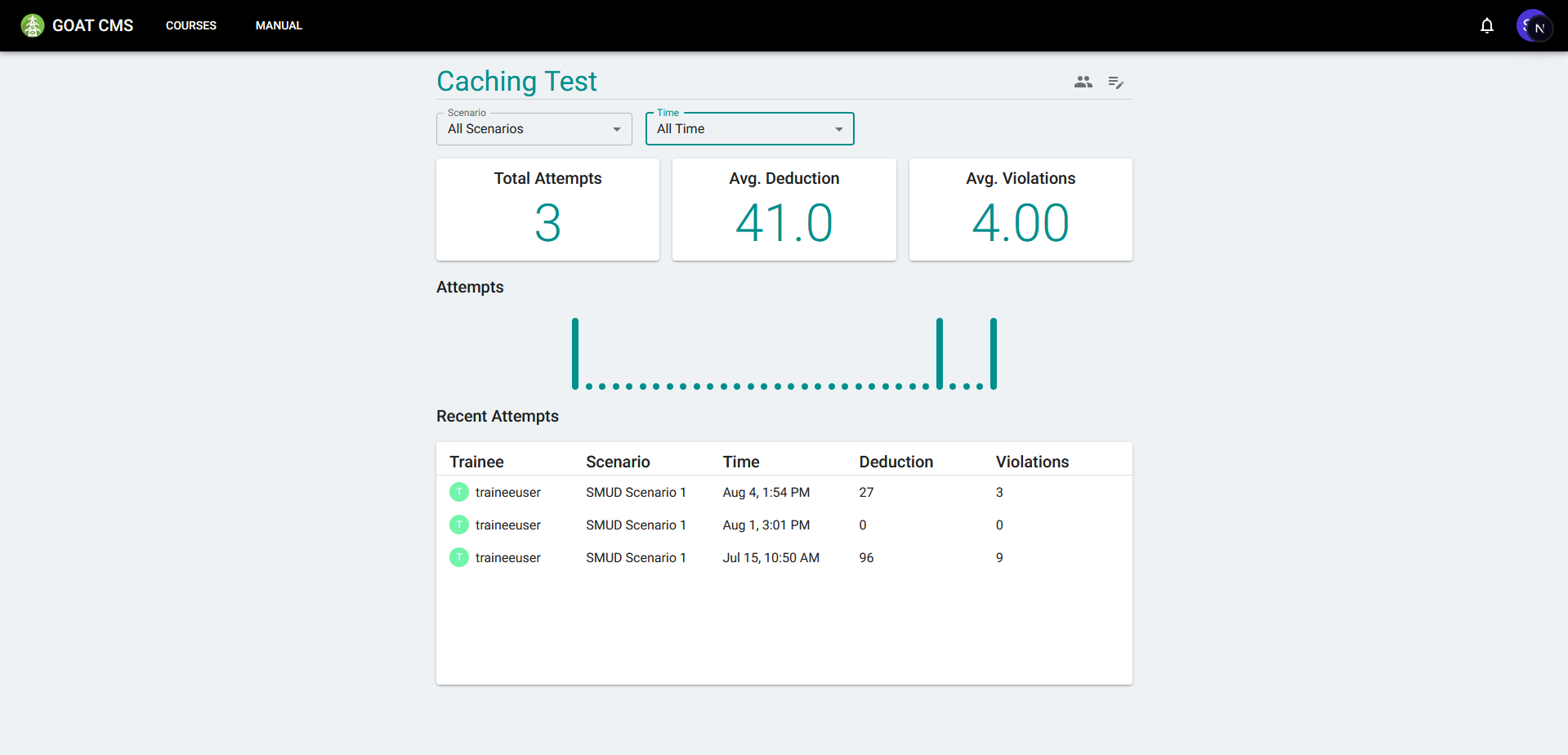
Initial state of the Course Statistics Page.
On this page, course instructors can see data for each attempt made on the scenarios in the course. They can also filter by specific scenarios or time periods. They can see summarized statistics at the top displaying how many times the scenario was attempted and how well the trainees performed on average. By clicking the View Trainees button at the top right, they can also see a list of trainees in that course, and click their name to view a similar page showing only the data for the selected trainee. This is valuable to gauge the performance of a specific person.
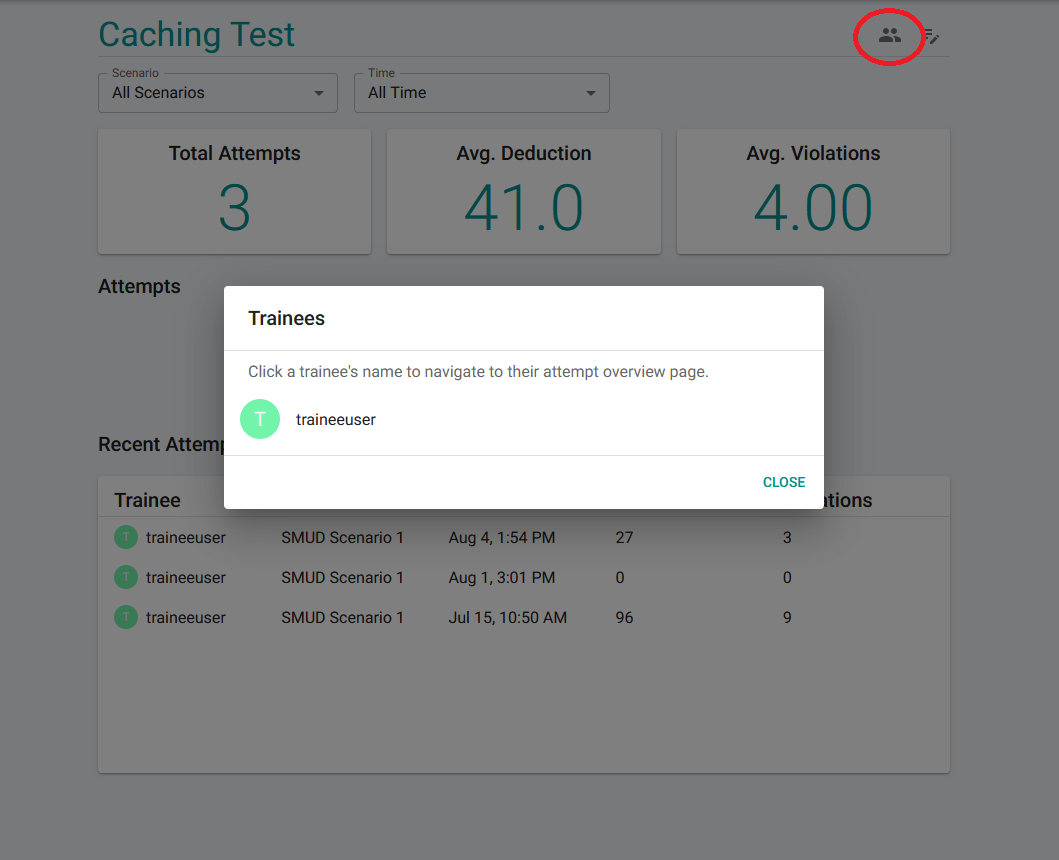
Window for viewing trainees, with the activation button highlighted in the top right.
Attempt Overview
Clicking an item in the list will guide you to the Attempt Overview page. This page gives general information about the trainee's performance during that particular run of the scenario, as well as a detailed list of every action GOAT detected from the trainee.
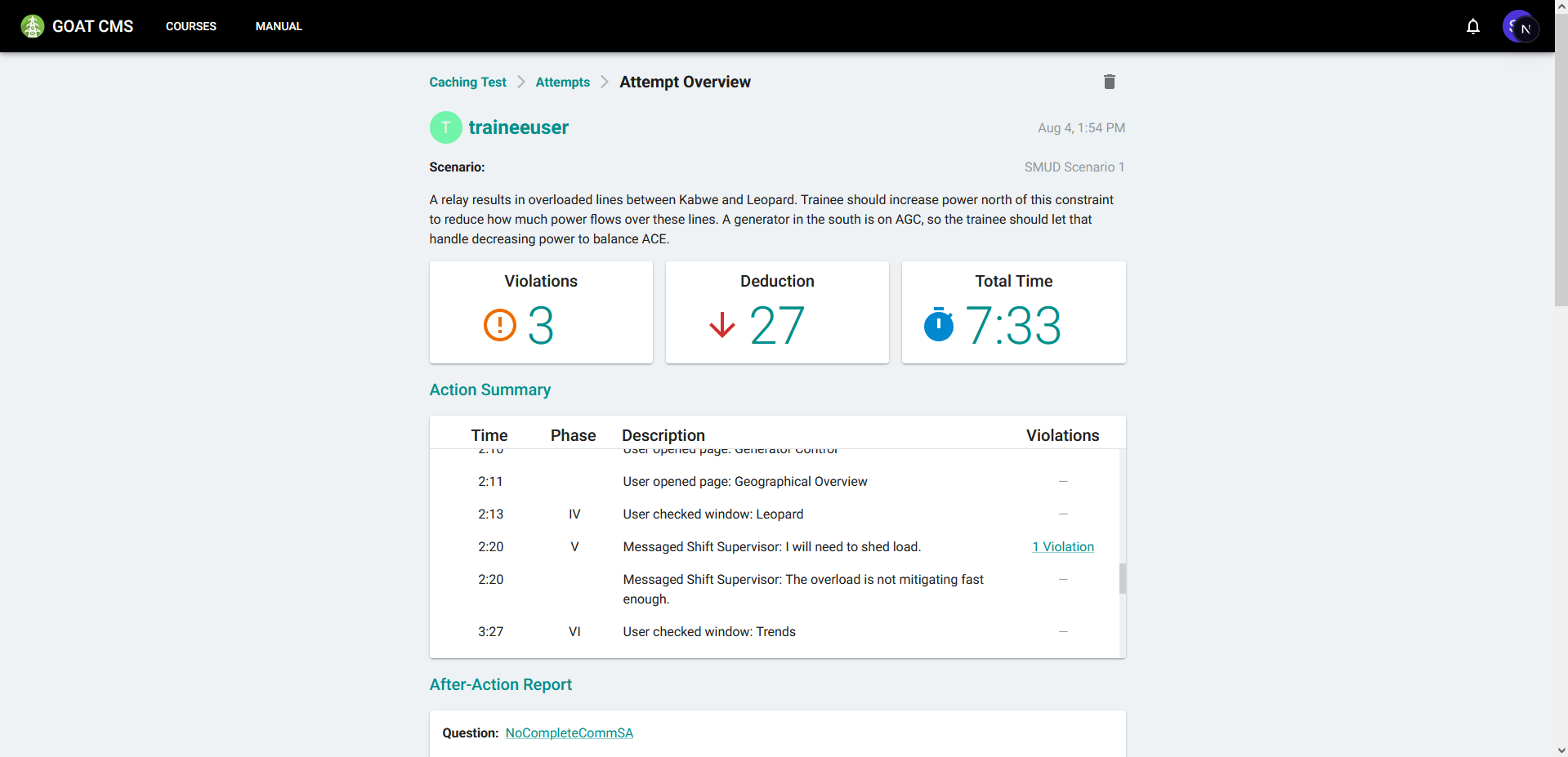
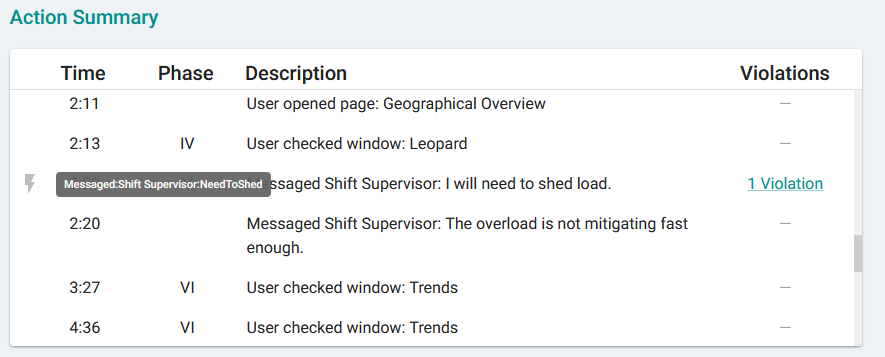
In the Action Summary, you can see a list of every action the user performed. You can see the time at which it was performed, which phase it contributed to, and which Violation it triggered (if any). You can also hover over the lightning icon that appears to the left of any action to see exactly what the action was, which is useful for developing Violation triggers.
Below the action summary, the After-Action Report section details the questions the trainee was presented with at the end of training.
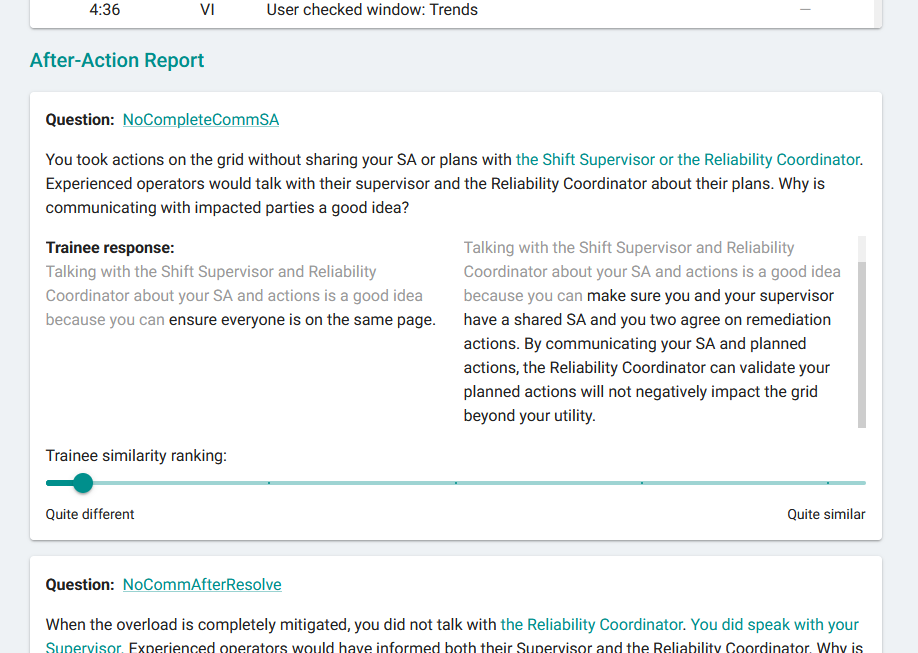
This question was triggered after the trainee skipped communicating Situational Awareness with both their supervisor and the Reliability Coordinator.
Each question provides a link to its editor page, assuming it hasn't been deleted. The question's prompt content also appears, with inputs substituted in if applicable (see the Inputs section on the Questions page). Below that, you can see both the trainee's and the expert's answer to the question, formatted to appear distinctly from the answer stub. Finally the trainee ranks how similar they feel their own answer is to the expert's answer, and this is displayed at the bottom.