Topics
v0.7.1
Question Images
When questions are presented in the After-Action Report, the trainee can view a set of images before and after answering the question. Providing these images can help the trainee build understanding on why incorrect actions were wrong and what they are supposed to do in the future. This brief tutorial will not cover how to create effective images for training, but it will cover how to actually upload them and attach them to questions.
Uploading Images
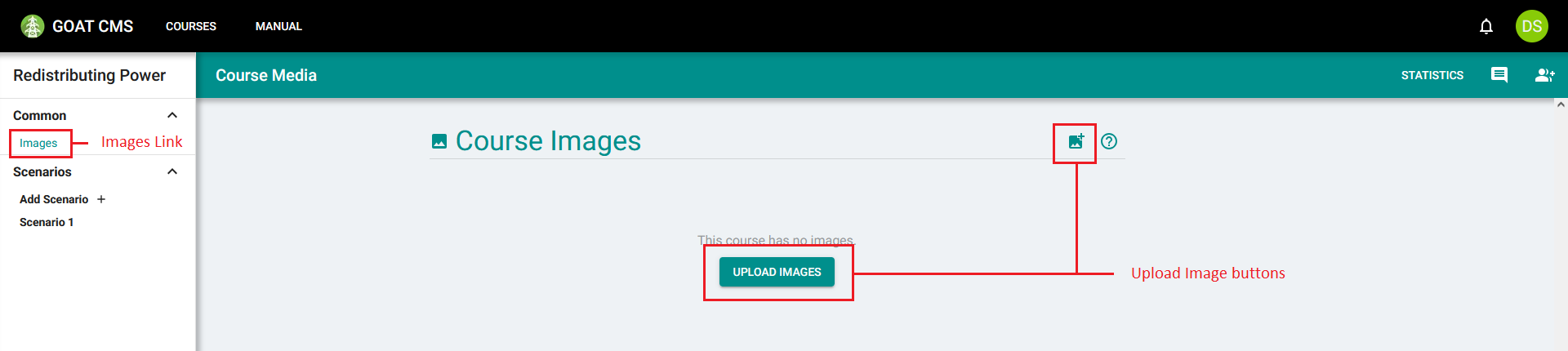
The first step to attaching images to a question in a scenario is to upload them to the course. Images, along with any other training media that may be supported in the future, are stored with the course itself. This allows multiple questions across multiple scenarios to use the same images if necessary. To access the Images page on a course, select the Images link in the sidebar. Images can then be uploaded with the buttons in the action bar or page content.
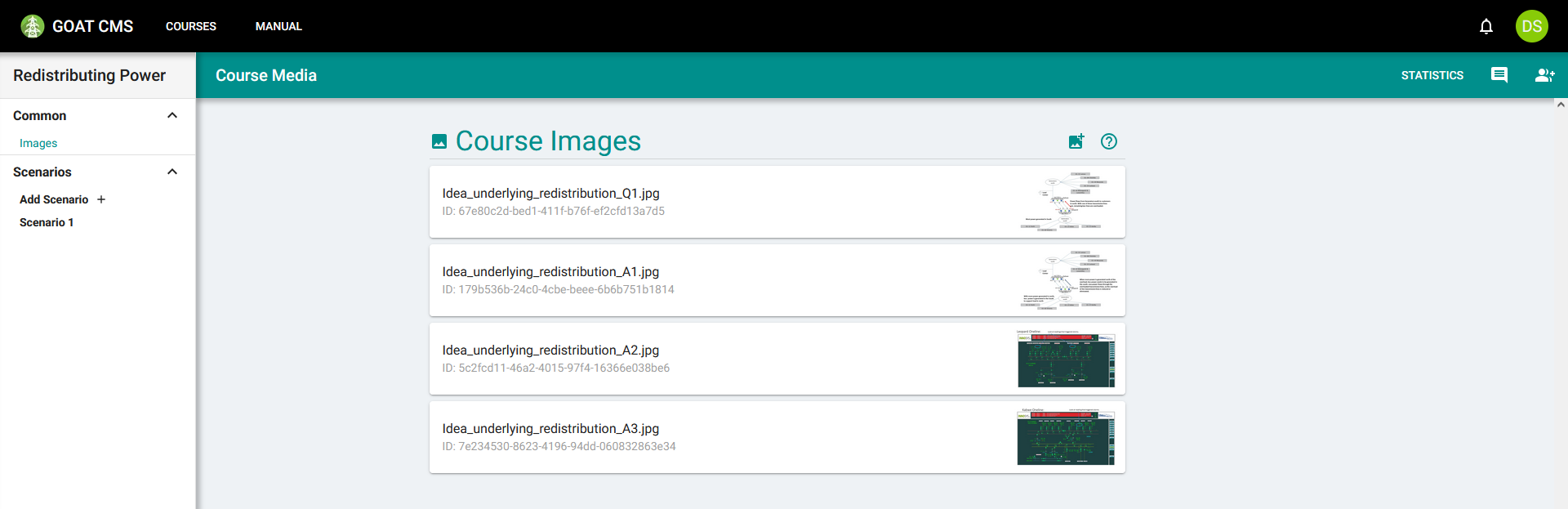
After uploading one or more images, they will be displayed in a list. You can see the name of each image, along with a preview.
Managing Images
Clicking an entry in the image list will expand a preview window. In this window, you can see the uploaded image in its full size. You can also rename the image or delete it.
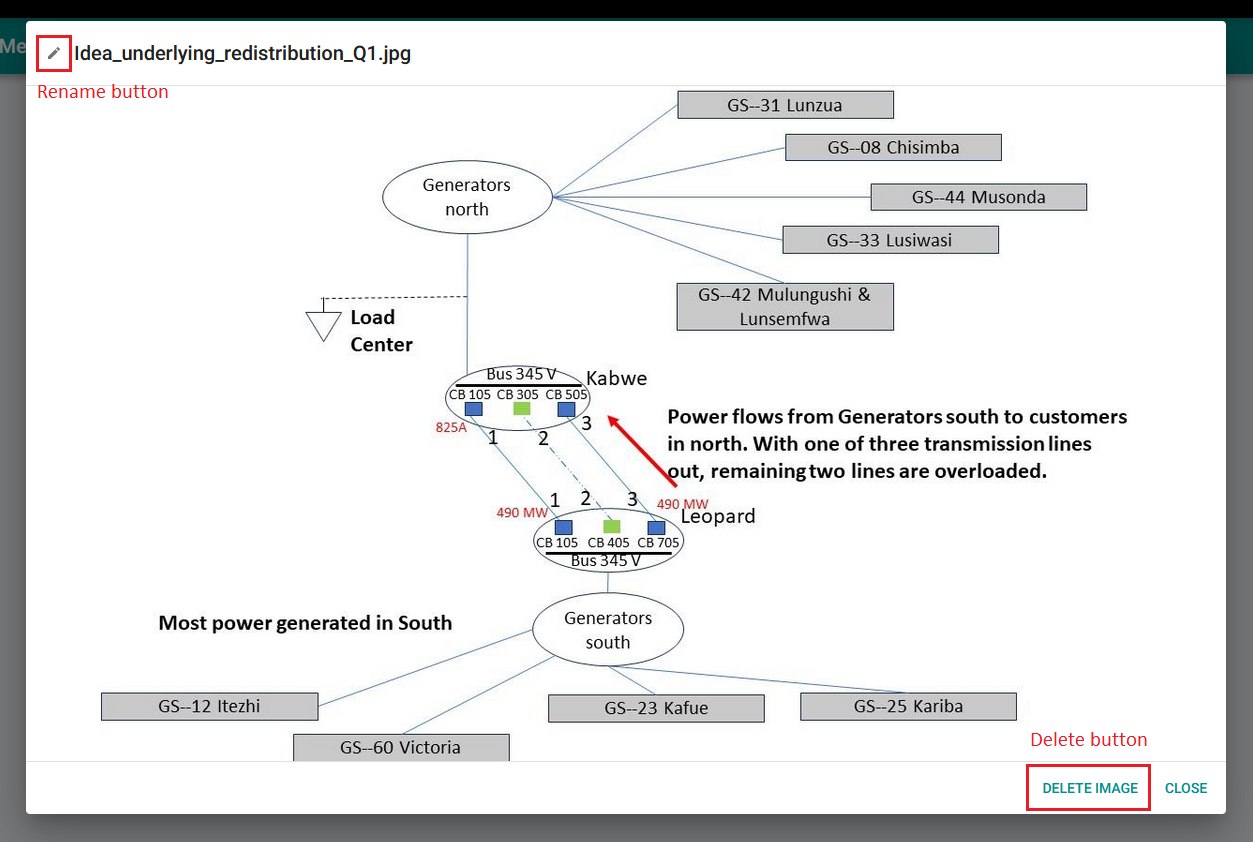
If images are renamed or deleted, this will break any questions that reference the image. The questions will need to be fixed before the scenario can be published again.
Assigning Images to Questions
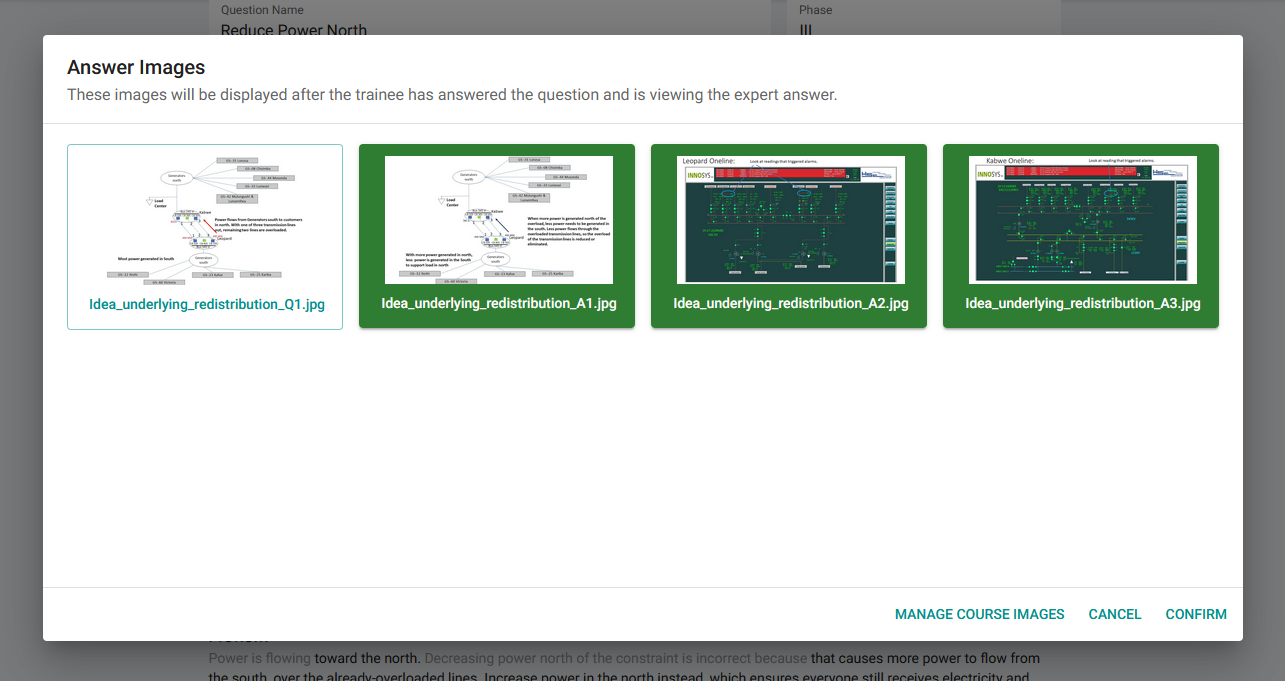
Question Images are displayed when the trainee is first presented with the question. The trainee can view them when answering the question. Answer Images are displayed after the trainee answers the question, and the trainee can view them while reading the expert answer. To assign images to either phase of a question, use the Select buttons at the bottom of that question's edit page.
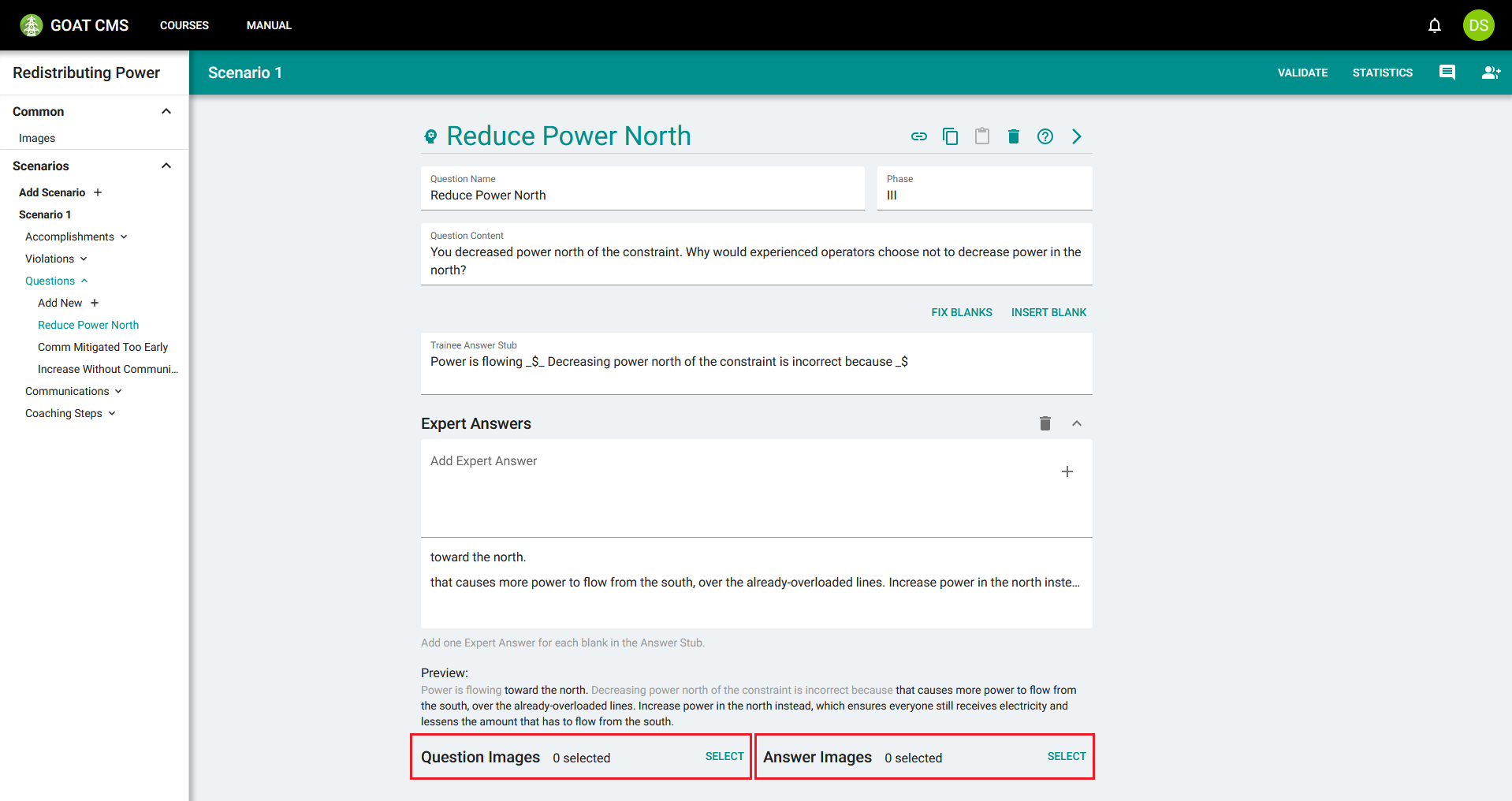
After clicking on either Select button, a window will appear with a preview of every image in the course. You can click on images to select or deselect them. After the appropriate images are selected, click Confirm to finalize your selection.
When the course is published and the trainee activates the question in the After-Action Report, they will see the selected images in an image carousel.
The next tutorial will cover how questions can contain dynamic text provided by multiple violations.