Topics
v0.7.1
Publishing the Scenario
The final step for creating a scenario is to validate and then publish it. Publishing a scenario signifies that it's in an acceptable state and allows it to be accessed by trainees that have been invited to the course.
Validation
Before a scenario can be published, it must be validated. This process does a deeper check of the scenario to ensure that GOAT will have no issues starting and running it. It makes sure all images and object references are intact, all fields have valid values, etc. It does not make any guarantees that the training will be effective or work exactly as expected, only that GOAT will be able to start and run it correctly.
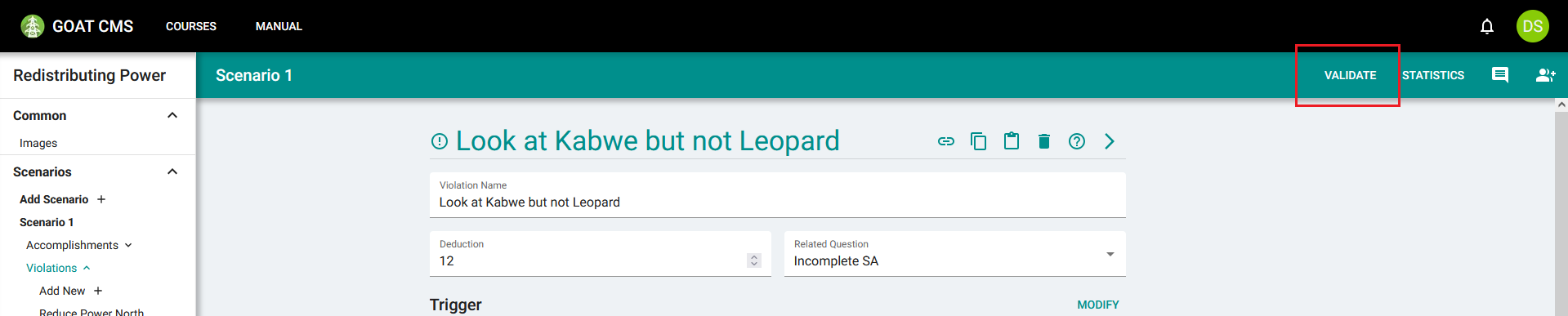
To open the validation window, click the Validate button in the top menu on any page in the scenario.
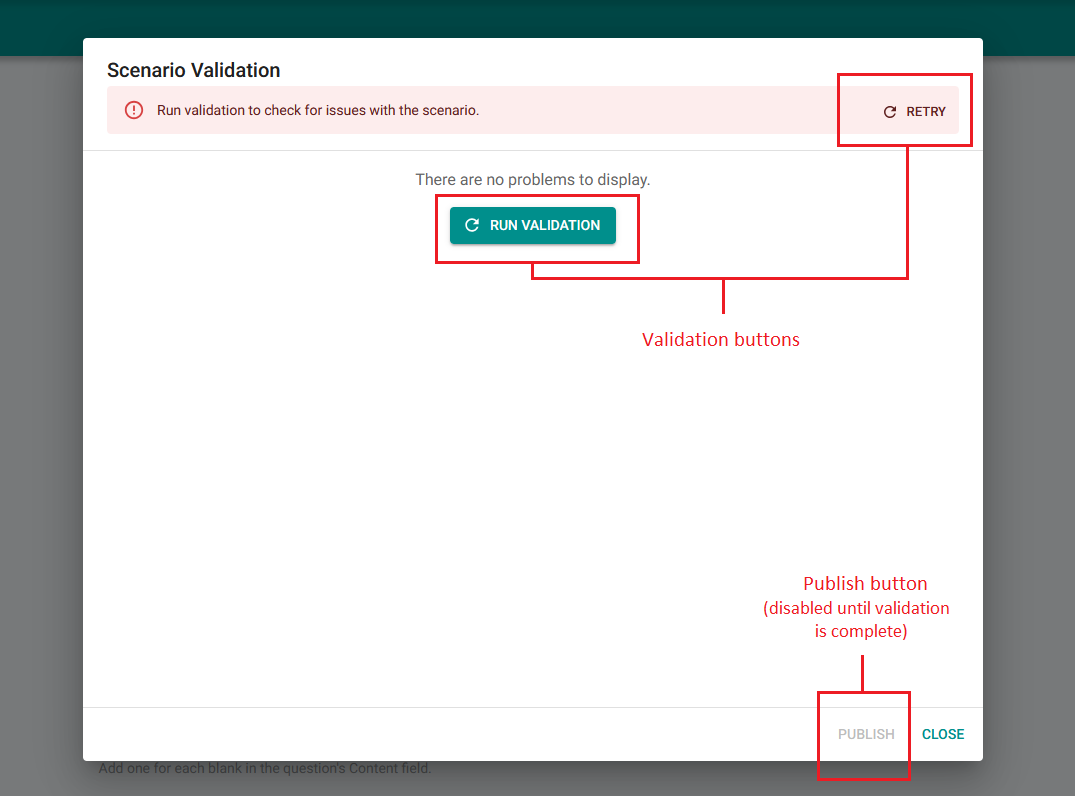
In this window, you should see that the scenario has not yet been validated. Click either Run Validation button to start the process.
After a few seconds, you should see one of two possibilities. If any issues were detected, the scenario is still invalid, and the problems will appear in a list in the validation window. If you followed the steps in this tutorial exactly, no problems should appear. If anything does appear, see the Validation and Publishing for instructions on resolving these issues.
Publishing
The other result of validation is that the banner at the top turns green, signifying that there were no problems:
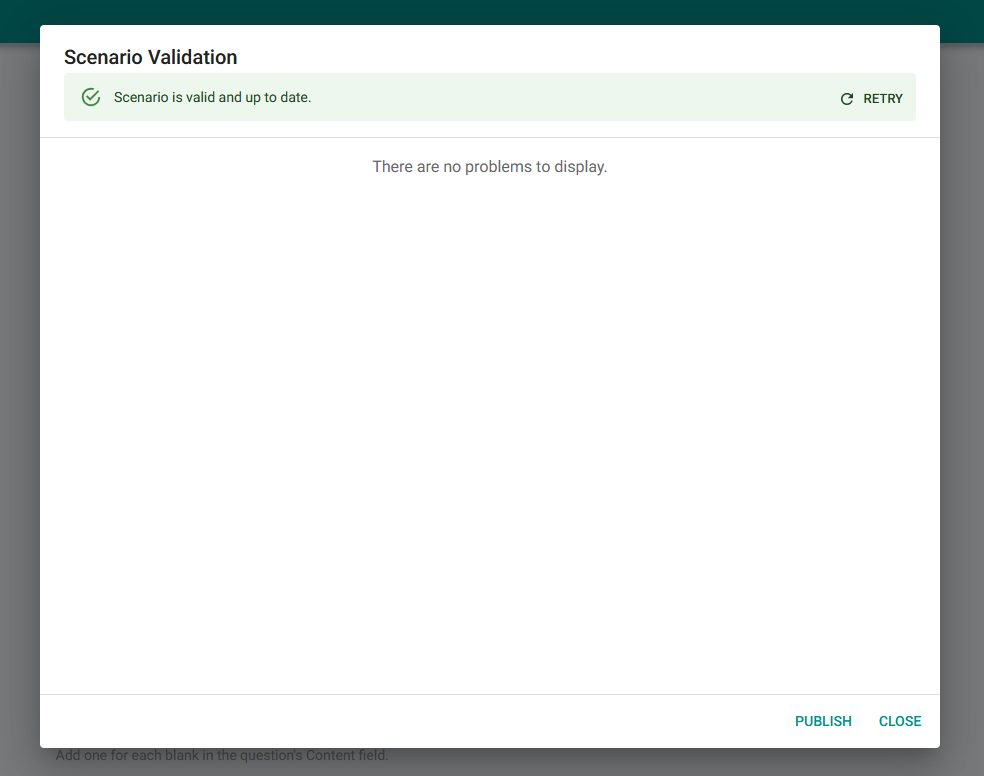
If this happens, the scenario is ready to publish. Click the Publish button that has been enabled at the bottom of the window to allow trainees to access the scenario.