Inviting Trainees
For a trainee to see and attempt a scenario, they must be enrolled in the scenario's containing course. After being enrolled by any of the course's staff, trainees will be able to see the published scenarios when starting GOAT. They can start these scenarios in the simulator, and upon completion, a log of their actions will be uploaded for staff to review.
Inviting trainees
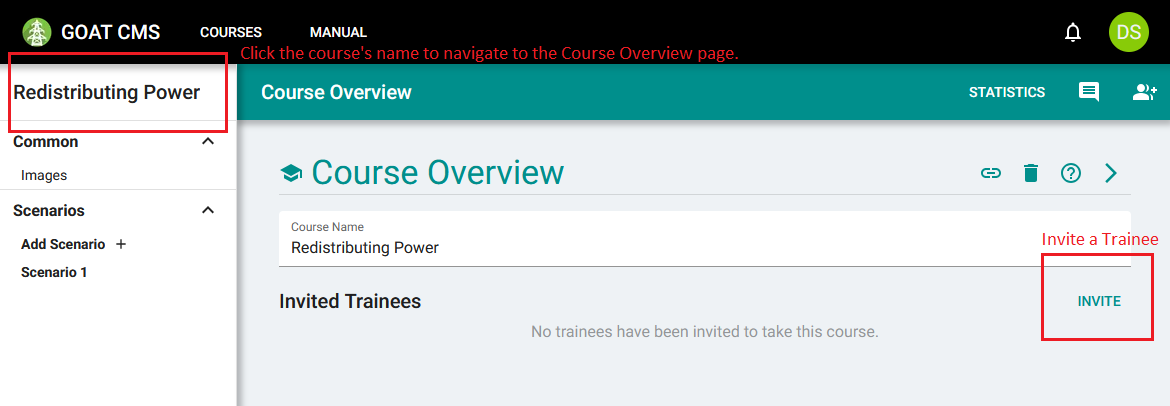
To invite trainees, proceed to the Course Overview section of the course's edit page. Click the Invite button to invite a trainee.
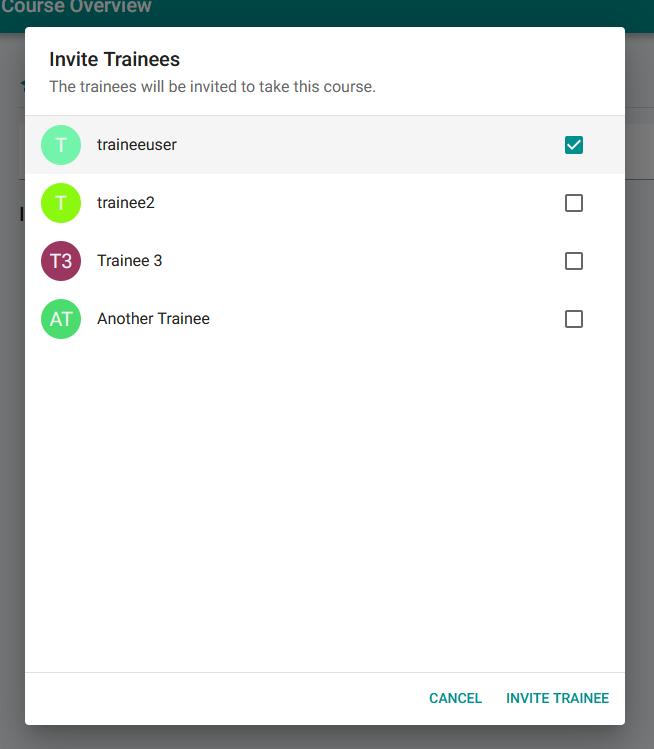
Select a trainee from the list, and then click Invite Trainee to enroll them in the scenario.
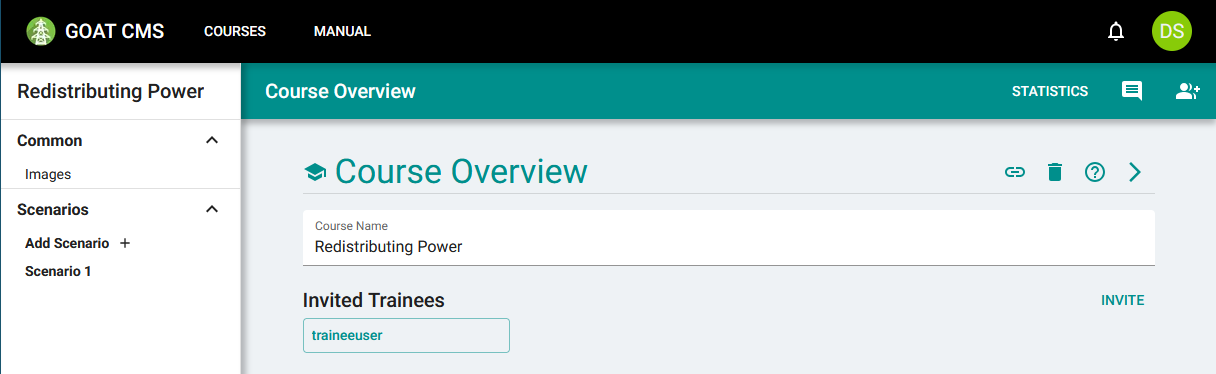
After the trainee is invited, you can see their name in the list of invited trainees.
Removing trainees
To remove a trainee, click on their name in the trainee list.
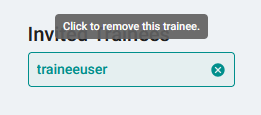
After removing a trainee, they will no longer be enrolled in the course, and they won't be able to see or attempt its scenarios. Their existing attempts won't be deleted, so you can continue to reference them. You can invite the trainee again at any time.
Future Development
This process will change before the CMS is publicly released. Course staff should not be able to see a list of every single trainee account. Staff will instead provide an email address, and the trainee will receive an invitation by email. Then they can choose to accept it, creating an account if necessary, at which point they will be enrolled. We do not have email set up yet, so the current temporary invitation system has been implemented.