Topics
v0.7.1
Collaboration
The CMS supports several features to facilitate collaboration between multiple instructors. These features allow several people with different skills to work together efficiently to create effective training scenarios.
Inviting Editors
To allow other accounts to view and help create a course, you can invite them as editors. Course editors have almost as much power as the course owner. They can create and manage scenarios and scenario objects, invite trainees, and view everything on the Statistics page. They are restricted from inviting or removing editors, or modifying or deleting the course itself.
Only the owner can invite collaborators to a course. To do this, click on the Editors icon in the top right corner of the course's Edit page to open the Editors window:
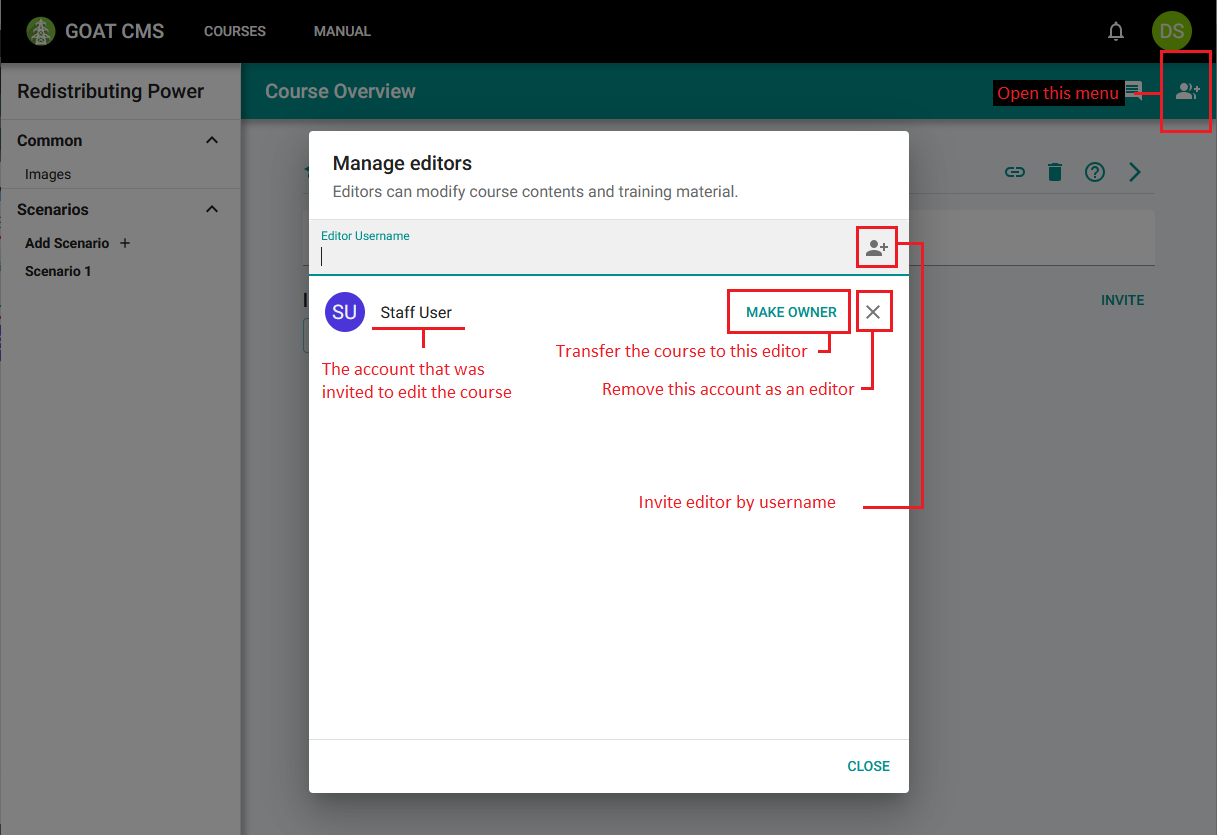
This window displays a list of accounts that have been invited to edit the course. For each account in the list, you can choose to remove them as an editor, or make them the owner of the course. Transferring a course in this way cannot be undone. If you transfer the course to another account, your account will remain as an editor, but you will no longer have ownership privileges.
Note: In the future, the invitation process will be made slightly more complicated. Instead of typing an editor's username, you will type their email address. They will then receive an email with the invitation, where they can choose to accept it and make an account if necessary.
Comments
The comments feature allows course collaborators to communicate with one another directly within the course editor. Comments can be left about changes that need to be made to existing objects, parts of the scenario trainees tend to struggle with, or how scoring can be refined to make training more effective. To view comments, click the Comments icon in the menu bar:
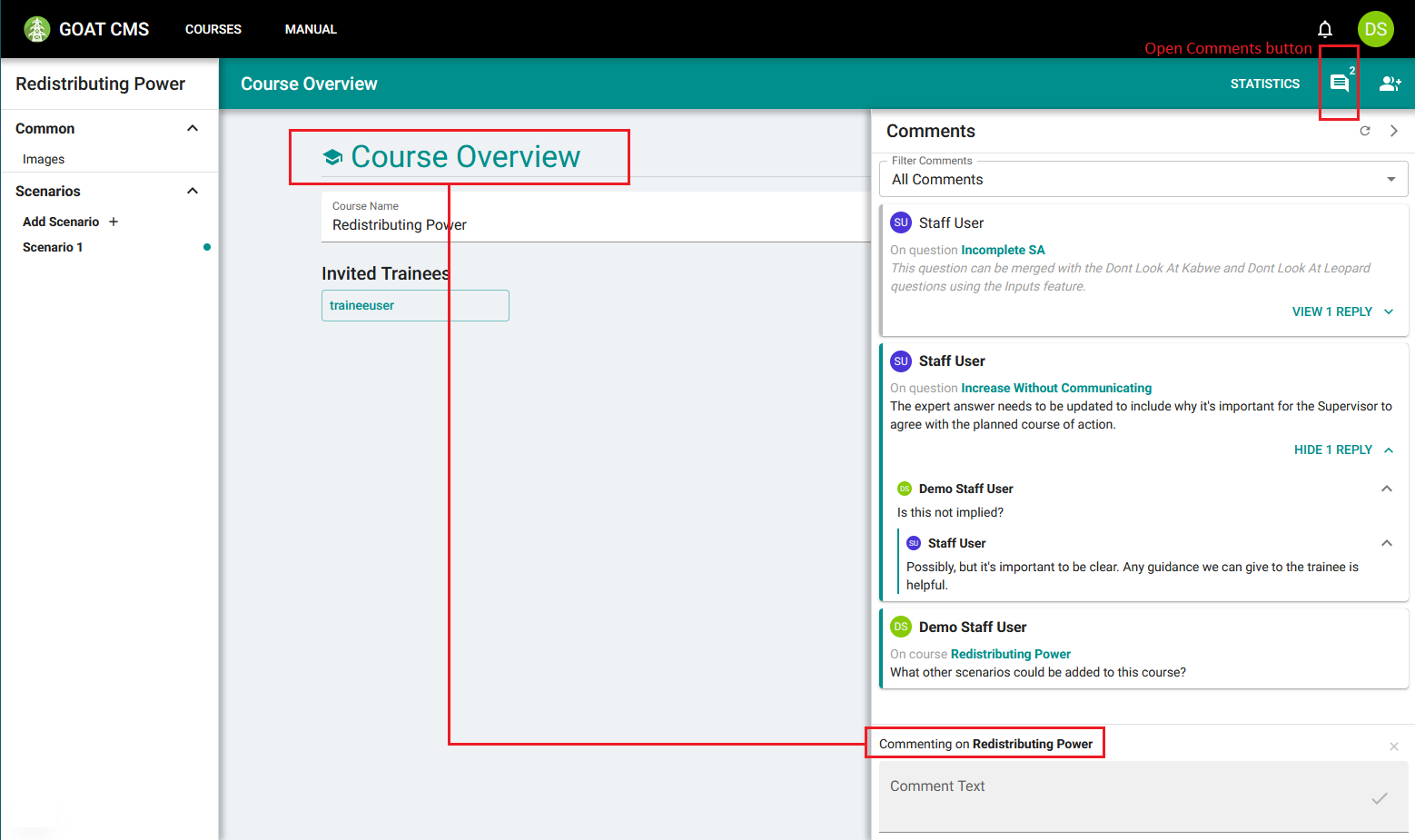
The course currently has one resolved comment and two open comments.
In the Comments pane, you can see a list of every comment that has been placed on objects in the course. Each comment has a subject, which defines which object the comment is associated with. This can be seen below the account name on the root comment. The subject name can be clicked to select it in the editor. Comments can also be filtered by their subject relative to the current selection.
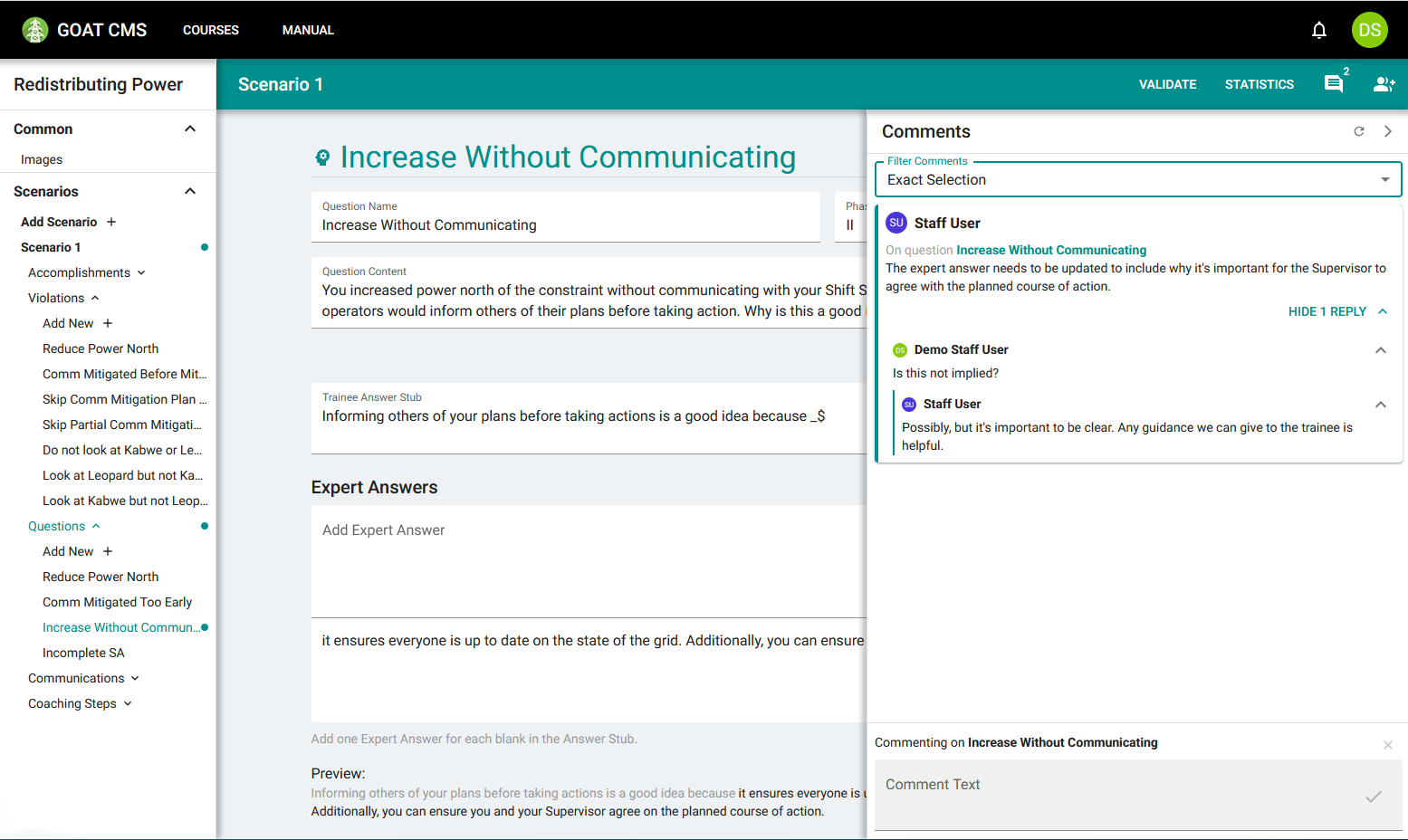
With the "Exact Selection" filter option, only comments on the selected object are displayed.
The subject is determined by which object is selected when the comment is made. In the above image, you can see that the course's page is selected, which means a new comment would be left on the course. If another object is selected, such as a violation, created comments would refer to that violation.
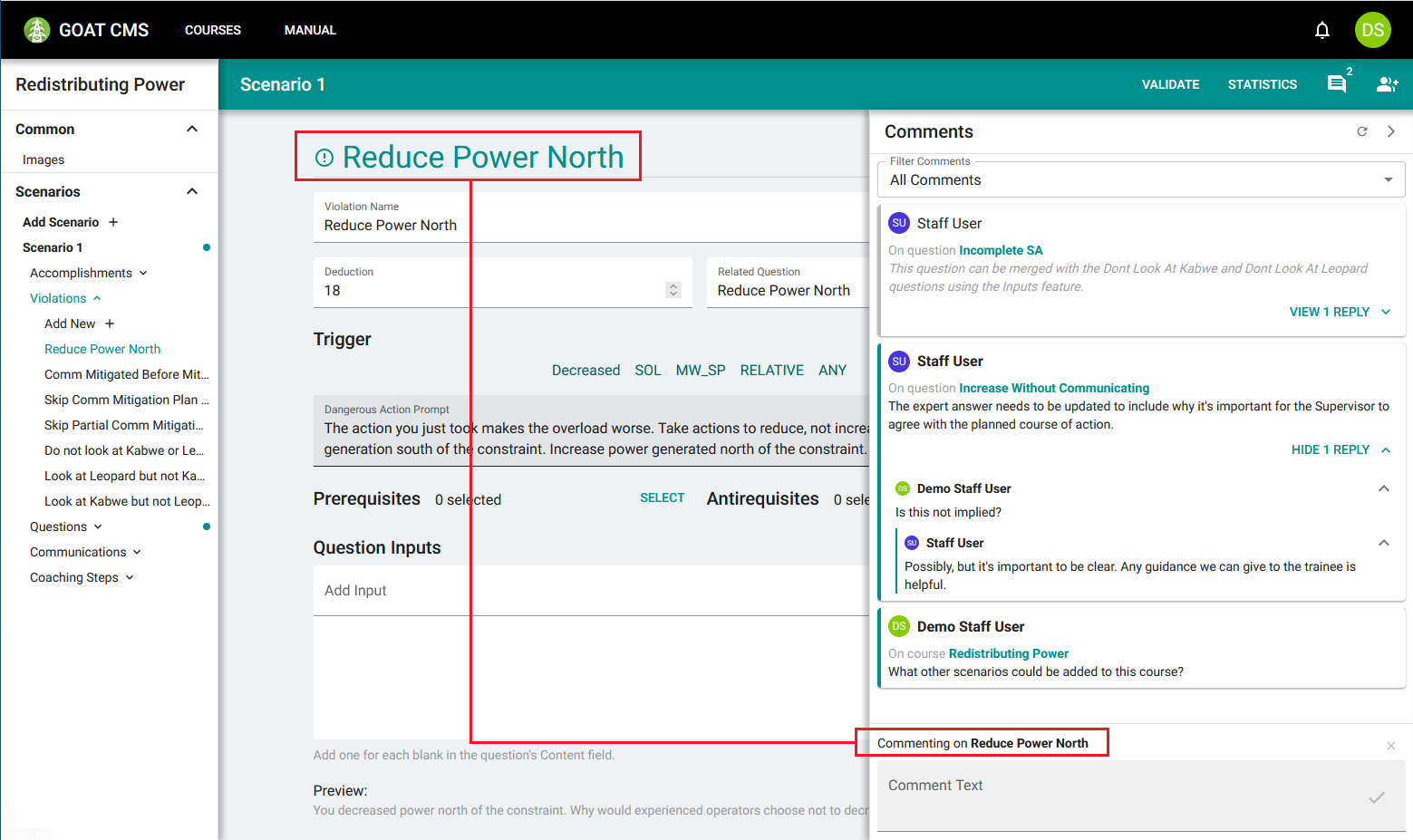
When a comment is no longer relevant, such as if it proposes changes that have been implemented, it can be marked as resolved. This greys out and italicizes the comment's content to show it's not as important anymore. The comment also will no longer create badges in the sidebar or on the comments icon. Comments are automatically deleted seven days after being marked as resolved.
Comment Controls
When the mouse is hovered over a comment, multiple control buttons will appear.
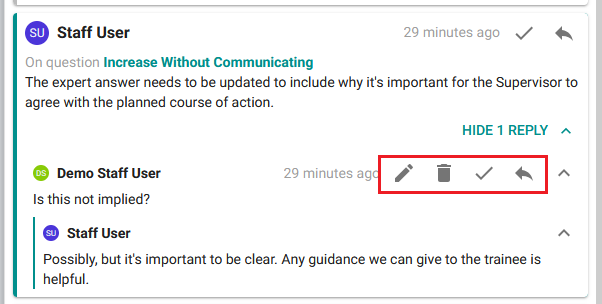
From left to right: Edit Comment, Delete Comment, Resolve Comment, Reply to Comment.
The Edit Comment button allows editing a comment. This will only appear on comments written by the user. When clicked, the comment will appear in the text field at the bottom of the comments pane:
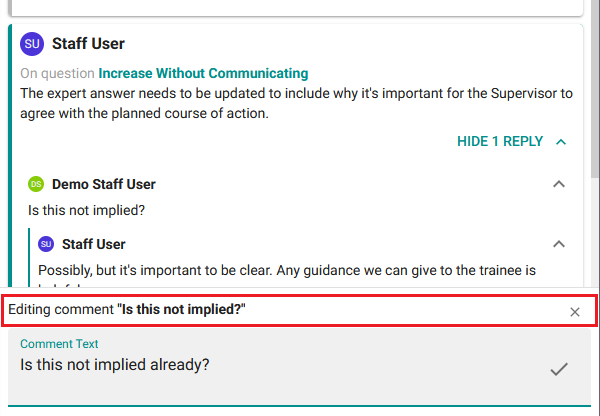
The X icon can be clicked to cancel editing the comment. Otherwise, when the check mark or the Enter key is pressed, the updated comment will be submitted.
The Delete Comment button deletes a comment along with all child comments. This option is also only available to the comment author.
The Resolve Comment button marks the comment as resolved, or if it is already resolved, marks it as unresolved. Marking a comment as resolved will also resolve all child comments. Marking a comment as unresolved will also unresolve all parent comments and child comments.
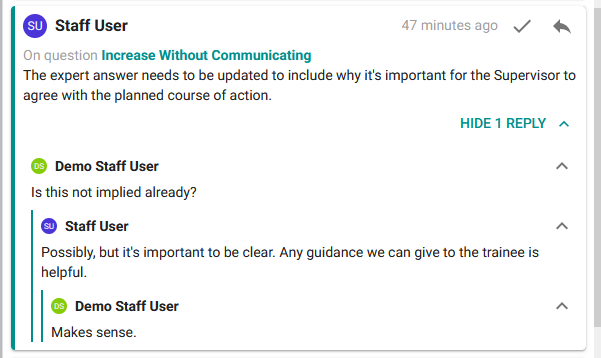
The Reply to Comment button allows you to submit a reply to a comment. The comment will appear in the tree beneath the comment you reply to.
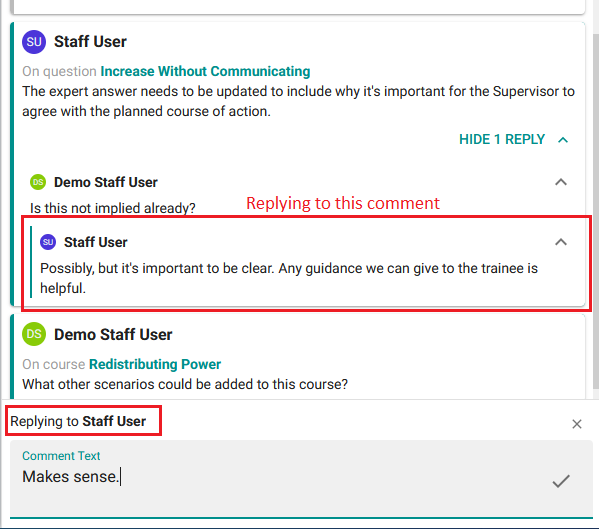
When the Reply button is pressed, focus is transferred to the comment input box as before, which will mention replying to the parent comment. When the comment is submitted, it will be added as a reply in the thread.